Mimac/Guides/Mac mini for AI agents
A Mac mini for AI agents, driven from an iPad Pro
Coding agents run for hours and want a machine that is always on. A Mac mini is that machine: quiet, small, cheap to run, with the whole macOS toolchain. The part nobody solves well is looking at it. This guide sets up a Mac mini that runs agents unattended, and an iPad Pro that lets you watch, steer and feed them from the sofa or the other side of the world.

Why a Mac mini, and why the iPad
An agent box needs three things: it must stay on, it must have the real tools (Xcode, Homebrew, Docker, a browser the agent can drive), and it must be easy to check on. A laptop fails the first, a Linux box in the cloud fails the second for anything Apple-flavoured, and a Mac mini with a dummy plug and a VNC client fails the third. Mimac fixes the third: the Mac renders at your iPad's exact resolution and streams at 120 fps, the Magic Keyboard is a Mac keyboard, and two things that matter specifically for agents, screenshots and voice, go the right way.
Any Apple silicon Mac mini will do for cloud-hosted agents. If you also run local models, memory is the constraint; buy as much as you can justify.
Steps
- Set up the Mac for unattended work.
Install your agents and toolchain the way their documentation says. Consider a dedicated user account for the agents, separate from your own, so a runaway
rmhas a smaller blast radius and you can log in as yourself alongside it. In System Settings → Energy, turn on Prevent automatic sleeping when the display is off, Wake for network access and Start up automatically after a power failure. - Install Mimac Connect with Start before login.
Get it from mimac.ai/mac, tick Start before login and Mimac Microphone, and grant Screen Recording and Accessibility. Start before login means a restarted Mac is waiting at the login window for you, which turns a macOS update from a trip to the closet into a ten-minute wait. It needs FileVault off; the headless guide explains the trade-off. Then pull the monitor and any dummy plug.
- Run long sessions in tmux.
Because Mimac shows you the Mac's real desktop, your terminal windows are exactly where you left them. Still, put agent sessions in
tmux: a terminal app that quits, a user who logs out, or an update that restarts the Mac no longer takes the session with it, and you can attach from the iPad or from any SSH client later. - Check in from the iPad.
Open Mimac, tap the Mac, and you are looking at the desktop in a second or two. Option+Tab switches between the agent's terminal and the app or browser it is changing. Scroll through logs with two fingers; at 120 fps it reads like a native app. Switch to another iPad app to answer a message and back again, and the session resumes instantly.
- Show the agent what you see.
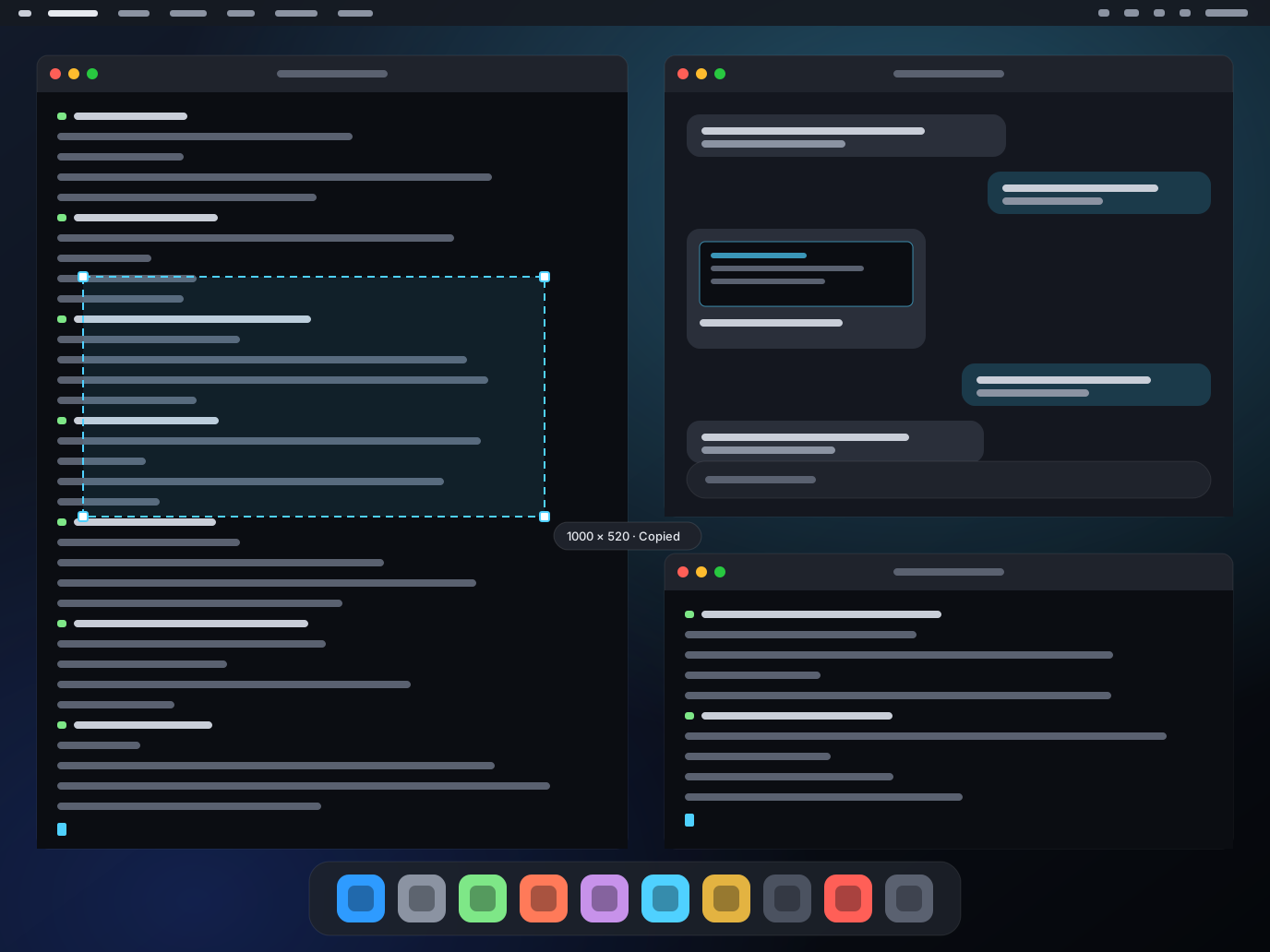
Agents are bad at the one thing you are good at: noticing that the layout is wrong. Drag a rectangle on the glass with a finger. The region lands on the Mac's clipboard as an image; press Command+V in the agent's chat and it is looking at what you are looking at. Double-tap for a quick snapshot of an area. No file to find, no AirDrop, no round trip through Photos.
- Talk instead of type.
Long prompts are faster spoken. The Magic Keyboard's dictation key types your words on the Mac. With Mimac Microphone installed, the iPad's microphone is a real input device on the Mac, so Wispr Flow, OpenWhispr or macOS dictation work in any app there, with the vocabulary and formatting you have already set up.
- Reach it from anywhere.
Put both devices on a Tailscale tailnet, connect to the Mac by its Tailscale name, and disable key expiry for the Mac in Tailscale's admin console so it never drops off while unattended. The Tailscale guide has the details. Frame rate on the road follows your connection; for watching a terminal it is more than enough.
Security, plainly
- Mimac has no relay and no account. The only things that can connect to your Mac are iPads you have paired with the six-digit code, and every session is end-to-end encrypted.
- If you share a tailnet with other people, use Tailscale's access controls to limit who can reach the agent box.
- FileVault off is a real trade-off. It is the price of unattended restarts. Make it deliberately.
- An agent with your credentials is an agent with your credentials. Scope its keys, and keep the dedicated user account idea from step one.
How Mimac compares for this setup
| Mimac | Workbench | Jump Desktop | Screens 5 | |
|---|---|---|---|---|
| Display on a headless Mac | iPad's exact resolution | Not stated | 1080p virtual display | Needs a display or dummy plug |
| Frame rate | 120 fps on LAN | Not stated | 60 fps | VNC-class |
| Trackpad gestures | Native pinch and momentum | Zoom and pan | Basic | Basic |
| iPad mic on the Mac | Yes | Built-in speech-to-text | No | No |
| Screenshot to Mac clipboard | Yes | — | — | — |
| Remote path | Your Tailscale; no relay | Vendor relay | Vendor relay | Vendor relay |
| Price | Free at launch, then $49.99 once | $79.99 per year | $14.99 once | $29.99 per year or $179.99 lifetime |
Prices and facts as of September 1, 2026. Full comparisons: Mimac vs Workbench, Jump Desktop, Screens 5. Pricing details on the pricing page.
Your Mac, at 120 fps, on the iPad Pro.
One purchase, forever. No subscription, no account, no relay.