Mimac/Guides/Magic Keyboard shortcuts
Magic Keyboard shortcuts in Mimac: what goes where
The promise is simple: your keyboard is the Mac's keyboard. Almost every chord you press goes straight to macOS, including several that iPadOS normally keeps for itself. This page lists the exceptions, the one switcher you need to relearn, and the touch gestures Mimac adds on top.
How keyboard capture works
When a hardware keyboard is attached, Mimac reads it at the lowest level iPadOS allows and forwards every key event to the Mac, where Mimac Connect types it. Mimac also tells iPadOS that it wants priority over the system's own shortcuts, which is why Command+Space opens Spotlight on the Mac rather than on the iPad. Modifier keys behave as modifiers, so chords, key repeat and holding Shift to select all work as they do on a MacBook.
Two things are outside any app's reach on iPadOS, and Mimac does not pretend otherwise. Command+Tab is always the iPad's app switcher; press it and you leave Mimac for another iPad app, and pressing it again brings you back, reconnected. The Globe key, and chords built on it, belong to iPadOS too.
Where each chord goes
| Press | What happens |
|---|---|
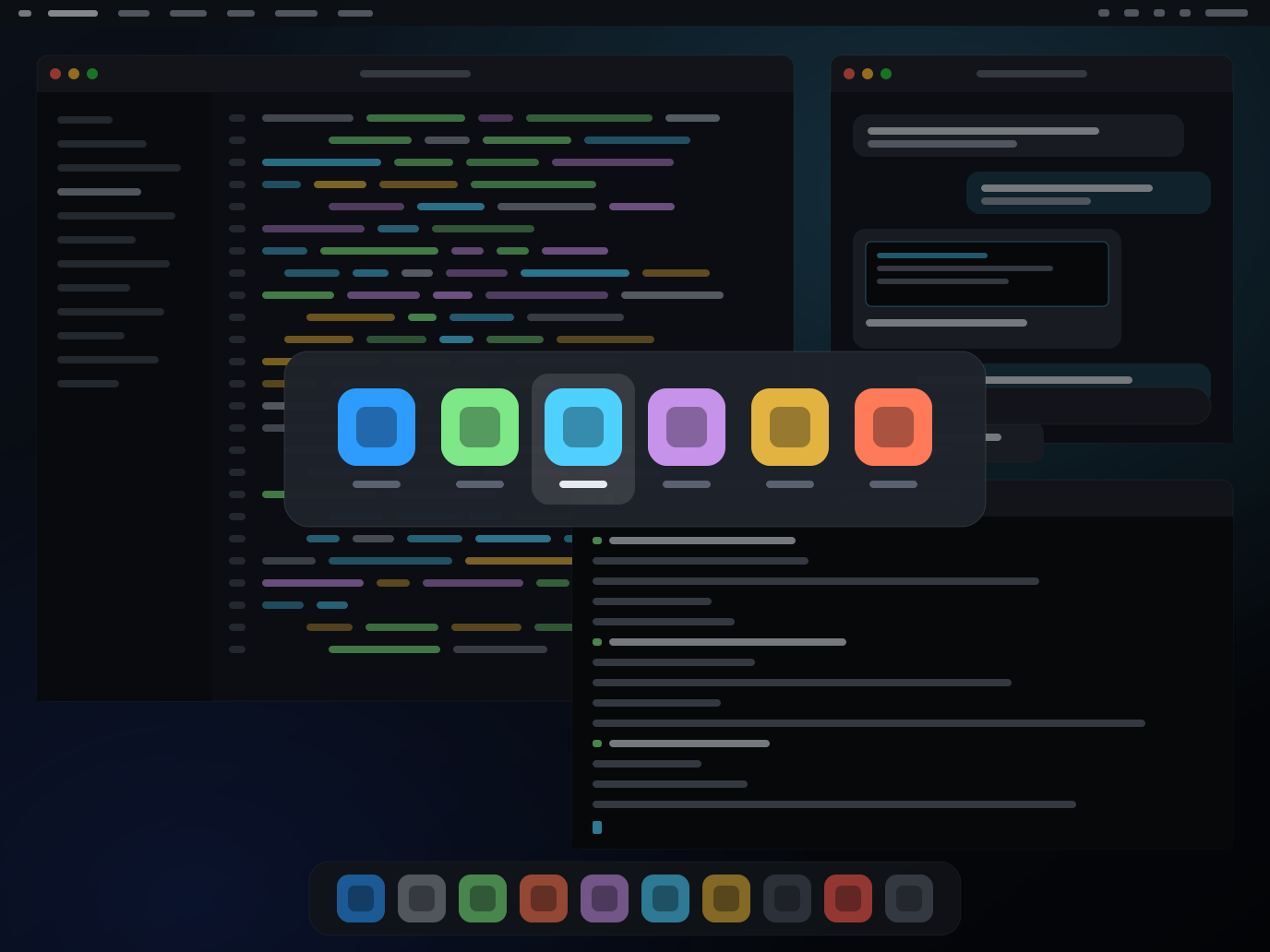
| Option+Tab | Mimac's app switcher for the Mac. Hold Option, tap Tab to cycle, release to switch. Drawn on the iPad from the Mac's live app list, with icons, so it appears instantly. |
| Command+Tab | The iPad's app switcher. Leaves Mimac; coming back resumes the session. |
| Command+Space | Spotlight on the Mac. |
| Command+Q, W, N, T, S, Z … | The Mac. Every application shortcut goes through unchanged. |
| Command+C / V | Copy and paste on the Mac. The clipboard also syncs between the iPad and the Mac in both directions, except for content marked concealed, such as passwords from a password manager. |
| Command+` | Cycle the windows of the current Mac app. |
| Control+← / → | Move between Mission Control spaces on the Mac. |
| Command+Shift+3 / 4 | The Mac's own screenshot commands. Files land wherever macOS saves screenshots. |
| Globe key, Globe chords | iPadOS. Emoji, keyboard settings and the like. |
| Dictation key | Speech becomes typed text on the Mac. See below. |
Relearn one habit: Option+Tab
Because iPadOS owns Command+Tab, Mimac gives the Mac's app switcher to Option+Tab. It is not a forwarded keystroke: Mimac Connect sends the Mac's most-recently-used app list and icons to the iPad, which draws the switcher itself. The result appears the instant you press the keys, with no round trip, and the switch happens on the Mac when you let go. After a day it is muscle memory.
Touch gestures Mimac adds
The trackpad is the Mac's trackpad: two-finger scrolling with momentum, pinch to zoom as a real macOS magnify gesture, two-finger click for a secondary click, click and drag. Touching the glass does something different and deliberately separate.
- Drag a rectangle on the screen with a finger and the region lands on the Mac's clipboard as an image. Paste it into Claude, Cursor, ChatGPT, Messages, anything.
- Double-tap an area for a quick snapshot of it, also to the Mac's clipboard.
These exist because the Mac's own screenshot shortcuts save files on the Mac, which is the wrong place when you are looking at it from an iPad and want to show something to an app.
Dictation
With a hardware keyboard attached, the Magic Keyboard's dictation key works: press it, speak, and the text is typed on the Mac. If you installed the optional Mimac Microphone component of Mimac Connect, your iPad's microphone is also available on the Mac as an input device, so dictation apps that run on the Mac, such as Wispr Flow, OpenWhispr and macOS's own dictation, hear you as if you were at the desk.
If pinch stops working
Mimac delivers pinch as a genuine macOS magnify gesture through an interface Apple does not document. If a macOS update changes it, pinch may do nothing until Mimac Connect updates. In the meantime open Mimac's tuning panel and switch Pinch delivery to Control+scroll, which most apps also treat as zoom.
How Mimac compares for this setup
| Mimac | Workbench | Jump Desktop | Screens 5 | |
|---|---|---|---|---|
| Display on a headless Mac | iPad's exact resolution | Not stated | 1080p virtual display | Needs a display or dummy plug |
| Frame rate | 120 fps on LAN | Not stated | 60 fps | VNC-class |
| Trackpad gestures | Native pinch and momentum | Zoom and pan | Basic | Basic |
| iPad mic on the Mac | Yes | Built-in speech-to-text | No | No |
| Screenshot to Mac clipboard | Yes | — | — | — |
| Remote path | Your Tailscale; no relay | Vendor relay | Vendor relay | Vendor relay |
| Price | Free at launch, then $49.99 once | $79.99 per year | $14.99 once | $29.99 per year or $179.99 lifetime |
Prices and facts as of September 1, 2026. Full comparisons: Mimac vs Jump Desktop, Jump Desktop, Screens 5. Pricing details on the pricing page.
Your Mac, at 120 fps, on the iPad Pro.
One purchase, forever. No subscription, no account, no relay.